
Modding Guide
Customize your AWoIaF experience beyond the in-game options. This guide covers save file editing with Warbender, basic modding with Morgh’s Editor, and advanced file editing. Always back up your files before making changes.
Some players may want to customize their AWOIAF experience beyond what can be provided in-game. This page contains some helpful information about how to make some edits to your savegame or make broader changes to the mod. It is recommended to always keep backups of all the files you edit or modify. This guide also applies to save file edits and modding in native Warband and to most other mods as well.
For more extensive modding, it is important to note that AWOIAF is a closed-source mod, which means that its module system is not publicly available. The module system is a method used to make modding easier, allowing for programming using Python and easier human-readable methods, which are then compiled into the mod files such as the text files strings.txt and troops.txt. It is possible to make changes in the mod without the module system, but for some tasks, this is very cumbersome. Unlike the module system files, the resulting compiled files like strings.txt are mostly in the form of machine code, which makes them difficult to understand and edit. Using, for example, a Large Language Model (ChatGPT, Claude, etc.) may be helpful in understanding and changing these files.
Save File Editing
To edit save games, you need a save game editor. Editors include, for example, Warbender and MnB save game editor. This guide will use Warbender, but almost the same principles apply to the MnB save game editor. Warbender is available here.
The general principle of save game editing is that most relevant and editable information in the save game is numerical values stored in variables such as “slots” associated with the object in question. This could be, for example, a troop, a faction, or an item, all of which have their own “pages” in the editor. Some features, such as troop “flags” regarding whether or not they are a hero character, are not stored in slots and cannot be edited by save game editors, and instead require modding.
With save game editing, you can change most things that already change or could in theory be changed by actions during gameplay. For example, the player and some other NPCs can in theory recruit various troops, own fiefs, recruit companions, own items, and marry a lord or lady. But save editing cannot add completely new features, like brand new items, fiefs, troops, or unique quests. For example, if a troop already exists in the game, you can add it to your party, but you cannot create a completely new troop or massively change its properties just by editing the save.
Warbender
- First, the basics of how to get started with Warbender. You can download Warbender from the GitHub of the creator, found here. Look for WarBender-1.0.4.zip. Download this file and extract it to a folder of your choice. Open the folder and run WarBender.UI.exe. The program will start and ask you to provide it with the save game to open and edit. By default, Mount and Blade Warband save games are found in the user’s Documents folder, for example “\Documents\Mount&Blade Warband WSE2\A World of Ice and Fire\Savegames” if you’re using WSE2 as recommended. The savegame files are named, for example sg00.sav. The number of the save corresponds to its location in the save game screen in-game: Top left is 00, top right is 03, bottom right is 09, and so on. Figure out which is the save you want to edit. The timestamp of the save can help, as your most recent save will be the save that has the most recent “Date modified” value.
- After you select your save, you will be asked to provide the module.ini file of the module of the savegame. In the Steam version, by default this can be found in C:\Program Files (x86)\Steam\steamapps\workshop\content\48700\948075218.
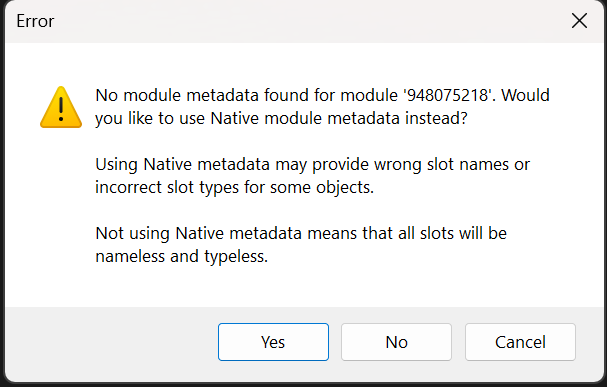
- After that, you will likely see the error message shown below. Press Yes. This is just a warning that some values shown in the editor are not labelled
- You should now see the main page of the save editor, as shown below. For example, here we have open sg04.sav. The main page lists some basic values of the savegame, like the current date. Various other variables are found, for example under global_variables, where slot 333 contains the player’s right to rule. On each page, on the left is shown the variable, and on the right is shown the current value of that variable in the savegame. On the far left is a box with folders such as “Factions”, “Parties”, and “Troops” which contain the pages of specific elements like specific parties on the map and NPCs and troops that can be found in the game.
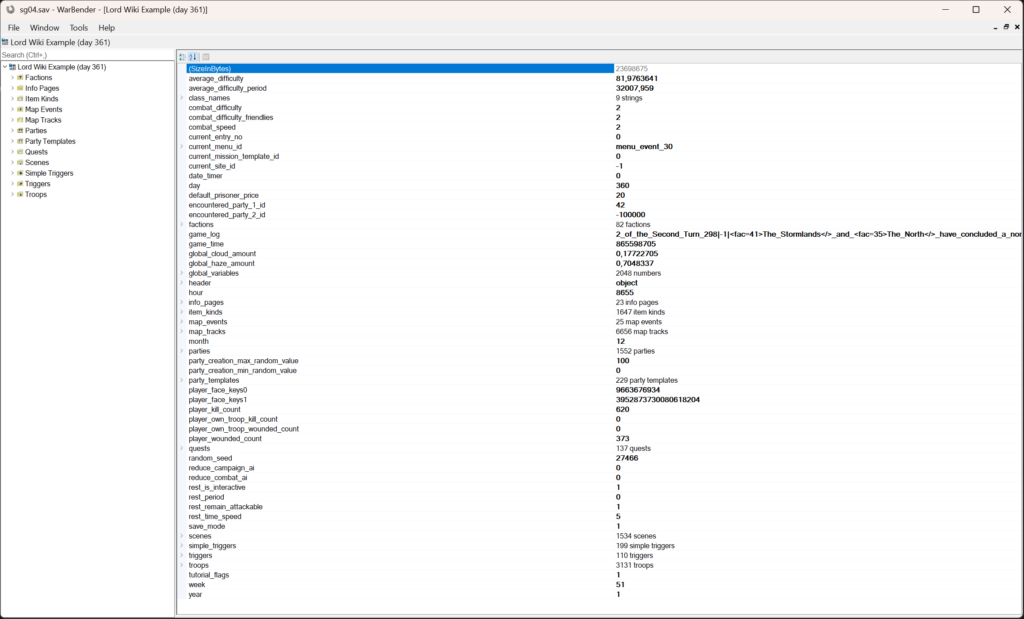
- Each of these elements has various slots whose values can be changed to affect the world in your save game in various ways.
Below are listed guides for a few common use cases of save file editing. These provide examples of actions available through save game editing, and similar principles can be helpful in figuring out other use cases. Note that some variables shown in the editor cannot always be changed, as they give an error if you try to change them, e.g., some changes to troop “flags”.
Editing player right to rule.
Open your save in Warbender. In the main page of the save, you will find a list of various variables of the save, such as average_difficulty, date_timer, random_seed, etc. Look under global variables. This shows a long list of variables called “slots”. Slot 333 contains the “right to rule” of the player. Change this to your desired value.
Editing player renown.
Open your save in Warbender. On the left, there is a list of folders such as “Factions” and “Info Pages”. Look under Troops, where the first page should be the troop page of Player. Open the Player troop page. At the bottom of the page is slots. Slot number 7 is (troop_renown), which in this case is the renown of the player. Change this to your desired value.
Adding troops or companions to your party.
1. Choose a sacrificial target companion or troop that you want to change for your new companion (or a hero unit) or troop. The target must be a companion if you want to replace them with a companion, and a troop if you want to replace them with a troop. Companions originally recruited from taverns are not permanently lost and can later be found again in taverns if you make the changes described in this guide. Move the target troop or companion to the bottom of your party list.
2. Open your save in Warbender. In the list on the left, choose Parties. The first party listed should be named your player character, named after their name. Open the party. Near the bottom of the list, you will find “slots” and “stacks”. Open Stacks.
3. The stack consists of numbers starting from 0. The last entry in the stack is your target. Open it, and you will see a list like “flags”, “num_troops”, etc. These should be self-explanatory. If you, for example, only want to change how many of a specific troop you have, edit the num_troops number of that troop’s stack and skip to the end of this guide.
4. To change what the troop in a stack is, the relevant slot is troop_id. The troop index value of this slot determines what troop is in your party.
5. Going back to the list on the left, open Troops. This is a list of pages for all the troops and unique NPCs in the mod. You can use the search bar at the top to make it easier to find the troop you want to add. Find and open the troop, then choose (Definition) found at the top and look at the value listed in the index. For example, if you want to add Dongo to your party, open his file, and you will see that his index is 1040.
6. Go back to the page of your party and the target stack. Click the existing value in the troop-id slot, select and remove it, and write in the index of the troop you want to add. Press Enter to input your new index value. You may also want to, for example, change the number of troops; simply input the number of the troop you want to have.
7. If you added a unique hero troop: Always keep the num_troops of unique NPCs at 1; otherwise the save will crash. To avoid buggy behaviour, it is good if the NPC is only in one place in the world: If you know they are already on the map in another party, you ought to also change the troop_id in the NPC’s stack of that party and replace them with an NPC you know is not in any party. (E.g. a random kingdom lady).
8. If you added normal troops, you are done and can proceed to step 12. If you added a hero unit like a companion, you need to edit their status. Go to their troop page.
9. At the bottom of the troop page is “slots”. In AWOIAF, there are usually 2048 slots, but we are interested only in slot 2 (troop_occupation) and slot 12 (troop_cur_center). Change the value of slot 2 to 2, which is “slto_player_companion”. This tells the game engine that this companion is now in your party, and will enable most normal companion interactions with them, like inspecting their skills and equipment. Set the value of slot 12 to -1 if it isn’t already.
10. If you want to be able to recruit back the replaced companion, go to their troop page. We are again interested in slot 2 and possibly slot 12. Change the value of slot 2 to 0, which is “slto_inactive”. This tells the game engine that this companion is available for placement in taverns, and after a few days in-game, the replaced companion will likely be recruitable back to your party in a random tavern. Note that this does not work with companions that do not normally show up in taverns, such as Dongo or Brog Matter, even if the traveller claims that the companion can be found in some specific town.
11. If you want to place the replaced companion in a specific tavern, look up the index of the town where you want them to be. Go to Parties -> Page of the town -> (Definition), where you will find its index. Replace the value of slot 12 on the troop page with the index of the town. The companion should now be found in the tavern of that town.
12. You are now finished with making changes to the save file. Select File -> Save as -> Save, for example as Sg01.sav or whatever number you want the save to have. Open it in game. If all went well, your save will open, and your party will have your changed troop or NPC in it.
Making an existing unique NPC into a companion. For example, Jon Snow or any kingdom lord or lady.
This is very similar to adding troops or companions to your party. Follow the above guide about adding companions to your party, but instead of an existing companion, you look up the troop page of the existing character you want to add. This unit must be a hero (usually they have the tf_hero flag), which is basically any NPC in the game that, in a party, has their health listed (e.g. 100%) and that cannot die in normal combat. This includes, for example, kingdom lords and ladies. Add the NPC following the same steps as you would with adding a normal companion.
Even NPCs not designed as companions will act mostly like normal companions: They will fight battles, can have their equipped items changed, and will gain experience, allowing their skills to be upgraded. However, they will lack many of the relevant scripts and dialogue, such as a backstory or reason for supporting the player’s right to rule. It is not recommended to grant them a fief or do other more complex companion interactions.
Note that these NPCs cannot be recruited again in taverns if they leave your party due to losing a battle or becoming upset. Prisoner release might also not work. To get them back, you need to go through the above steps again.
The mod features various troops that are unique characters but are not hero troops: They can die in battle, their inventory cannot be changed, and they do not level up or change their skills. It is not possible to change these troops into hero troops or companions just by save file editing; deeper modding is required to do this. It requires adding the hero “flag” to these characters. Morgh’s editor can be used to do this.
Removing the married status of a kingdom lady, and/or making them appear in the lord’s hall. For example, Sansa Stark.
Open the save in Warbender. On the left, go to the Troops folder. Find the lady you want to edit (you can use the search bar to help you). Open their troop page by double-clicking it. At the bottom of their page is slots.
Slot 30 determines their spouse. Set this to -1 to remove their husband. Go to the troop page of the husband and set slot 30 of their spouse also to -1. Your kingdom lady is now unmarried. However, the player might not be able to talk to them if they have no guardian, as they tend to show up in the lord’s hall of their guardian.
Slot 34 determines their guardian. If it is -1, there is no guardian and the lady will probably not show up in-game if they are unmarried. Consider who you want to be their guardian, and look up the troop page of that guardian. On their troop page, under (Definition), you will find the index of that lord. Input that index into Slot 34 to make the lord the guardian. (Note: The game engine will assume that the guardian lord is their brother or father). Your kingdom lady should now be findable in a place relevant to the kingdom lord, such as the lord’s hall of a fief that they hold.
After the edits, remember to always save your changes into a new changed save. Select File -> Save as -> Save, for example as Sg01.sav or whatever number you want the save to have. Open it in game. If all went well, your save will open, and the changes you made are applied.
Modding (with Morgh’s)
The easiest changes are those that can be made using Morgh’s editor. You can download it, for example from Nexus, but you need a Nexus Mods account to start the download.
Morgh’s editor can be used to make, for example, the following changes: 1) Edit existing troop properties like their skills and items. 2) Add or remove new types of troops, including hero NPCs. 3) Edit item properties. 4) Change unique non-hero troops into hero companions.
Changes made using Morgh’s affect the whole mod, not just your save file, so it is recommended that you make a whole separate mod based on the existing mod, instead of simply editing the existing mod.
Note: Existing saves are usually not compatible with changes. For some changes, the initial values are applied only when starting a new game and then kept stored in the save file, and therefore, saves from before the modding changes are not applied. For other changes, the change is so large that saves from before the changes no longer work properly. It is therefore recommended to always start a new game after making changes with Morgh’s editor.
Start Your Own Mod
- To start your own mod based on AWOIAF, go to the folder of the AWOIAF module (default on Steam is
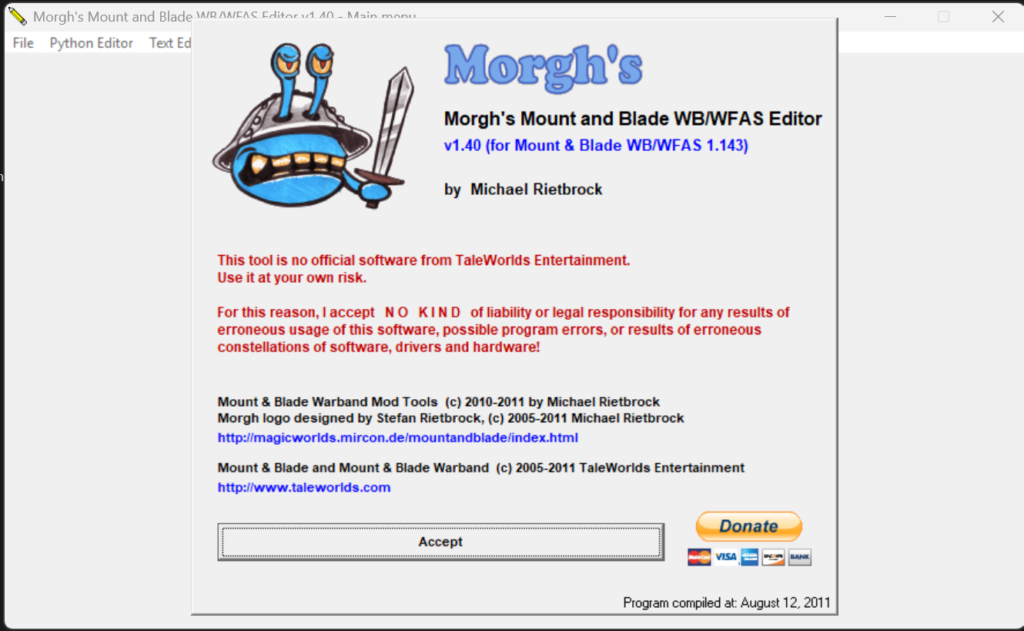
C:\Program Files (x86)\Steam\steamapps\workshop\content\48700\948075218) and copy it into Modules (default on Steam isC:\Program Files (x86)\Steam\steamapps\common\MountBlade Warband\Modules) and give the folder a new name like “My_Custom_AWOIAF”. - Extract the file “Morghs M&B WB-WFAS Editor.exe” somewhere on your computer. Easiest is to put it into the folder of your custom mod. Run it. You get an introduction screen shown below, where you need to press Accept.
- After that, you will see the screen shown below.
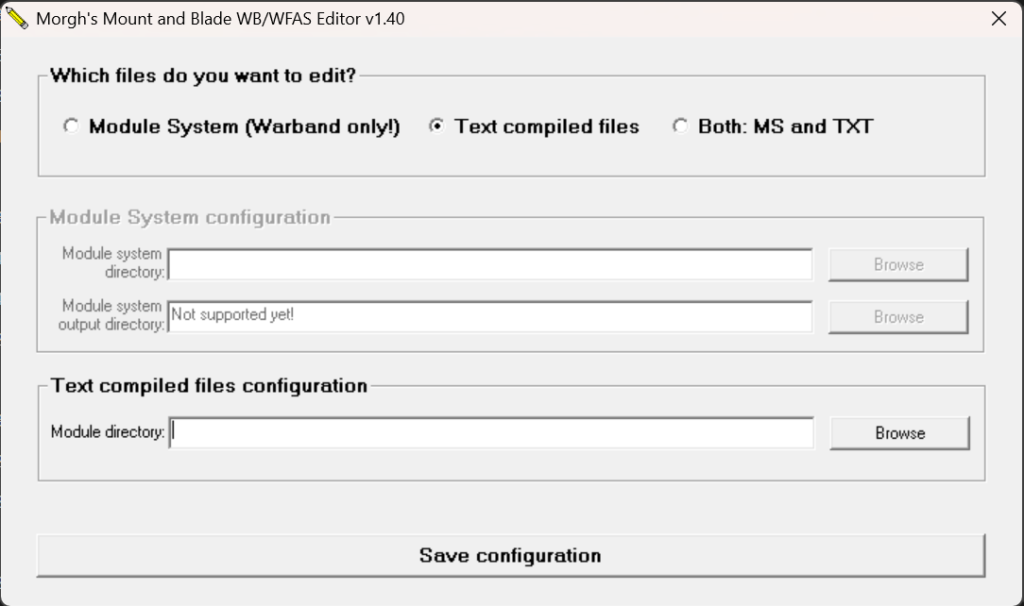
- As AWOIAF is a closed-source mod, you do not have the Module system. Therefore, choose “Text compiled files“. For the “Text compiled files configuration“, press Browse and choose your custom mod folder. Then press Save configuration.
- You are now using Morgh’s editor to browse the .txt files of the mod. On the right, you see various options, like the troops and items editor.
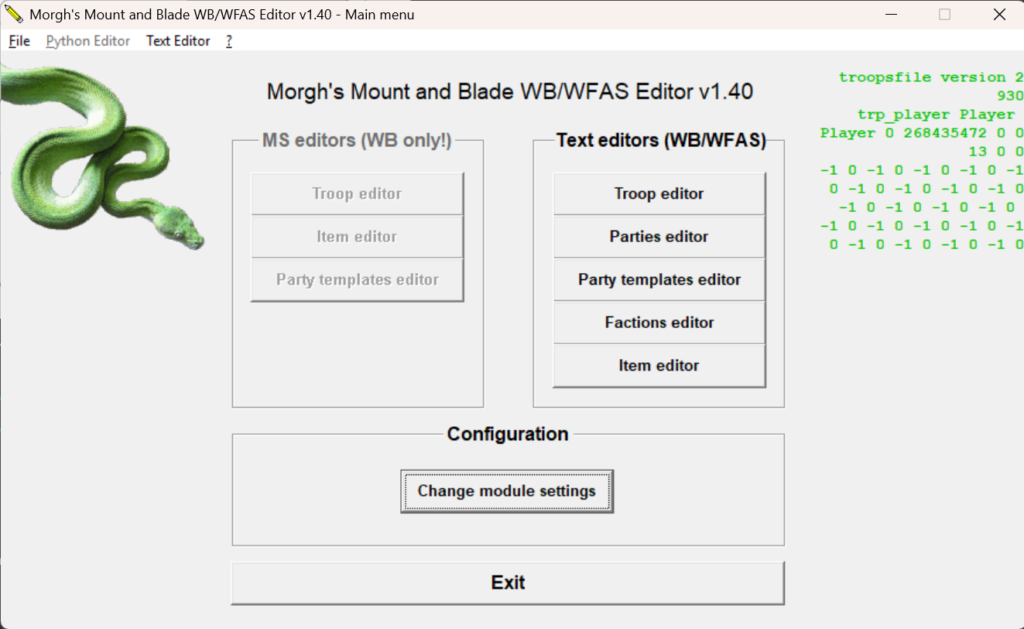
- As an example, we will make a simple edit to an existing troop. Press “Troop editor”. It will open a page where, on the left, is a long list containing all the different troops (including unique NPCs) of the mod. Choose the troop you want to edit. For example, in the image below, the troop page of Mya Stone is open.
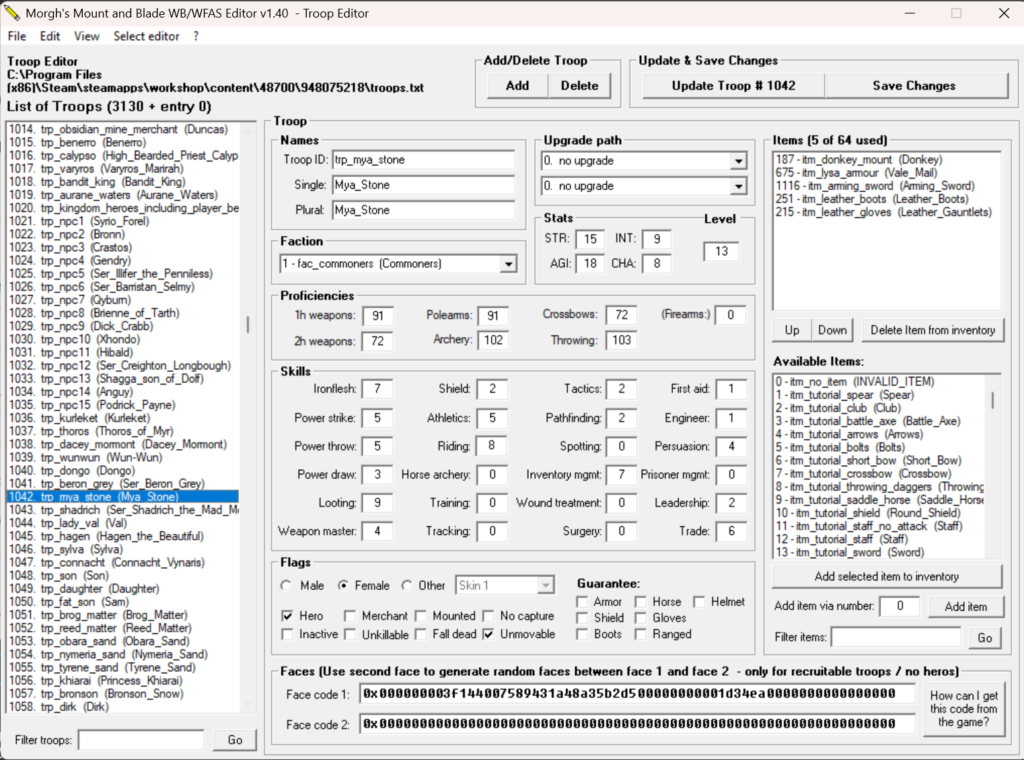
- You can change the listed features of the troop. For example, you could change Mya Stone’s STR value from 15 to 20. After you have changed the values, press “Update Troop #” at the top, and then press Save Changes. You will be shown the values in the new entry, and upon saving, will be asked if you want a timestamped backup. Once you have saved the changes, when you start a new game in your mod, the changes will be applied, e.g., Mya Stone will now start at 20 strength instead of 15.
Advanced Modding (without Morgh’s)
Editing without Morgh’s requires parsing through the text files of the mod, which, as noted above, are not written to be easily human-readable. While challenging, some changes can still be made. Here are two examples of such changes:
Changing which companions your companions like and dislike.
This value can actually be changed more easily in a save using Warbender. On the troop page of the companion, Slot 71 and Slot 73 are the indices of the disliked companions, and Slot 75 is the liked companion. However, these changes apply only in that save. If you want to permanently change companion dislikes and likes, you need to change game files.
The initial slot values of the characters are set in scripts.txt under the block “initialize_npcs”. The troop indices are marked in this code like this:
troop_index = encoded_value – 360287970189639680
where “encoded_value” is the value that you see in scripts.txt.
So for example Dongo, whose troop index is 1040, is referred to as the number 360287970189640720.
The code under initialize_npcs is a long list of different troops (NPCs) having their slots filled with the values they will have at the start of the game. For example:
500 3 360287970189640720 75 360287970189640719
This presumably means the following: 500 is the number of the order for the engine to change a slot value. 3 tells the engine that there will be three arguments for making this change. 360287970189640720 is the index of Dongo. 75 is the number of the slot being changed. 360287970189640719 is the index of Wun-Wun.
In other words, what this command means:
“Order 500: You will set the initial value of a slot. There will be 3 arguments. Change the value of 1) Dongo‘s slot 2) 75 to be 3) Wun-Wun.”
You can use Morgh’s or Warbender to look up the indices of the companions you want to edit. First, decide what you want the situation to be, e.g., who likes and dislikes who. Look up the troop indices of the companions that will be affected. Transform those indices into the machine code values. Look them up in scripts.txt, and change them by switching what value in each command is before or after 75 to change who the command affects. Save your changes. When you start a new game, if you did the edits correctly, you will find that the companions have the likes and dislikes you specified.
Changing which troops are paid zero wages.
This is determined in scripts.txt, under the script “game_get_troop_wage”. As this is a more complex change, in this example an LLM was used to understand how Warband handles scripts, and to make the changes. What follows is a summary of how the script works, provided by the LLM. To more easily make your desired changes, you can feed this information into an LLM, alongside the troop id of the troop you want to make wageless, and ask it to write a new version of the “game_get_troop_wage” script where your selected troop is wageless.
Guide to editing scripts.txt to make troops wageless:
Here is described how to locate and hand-edit the wage logic in scripts.txt directly, using the zero-wage troops (Unsullied, Veteran Unsullied) as a worked example. It is then shown how to add a new troop (Vale Levy used as example) to the same exception list.
First, it should be understood that weekly troop wage is not a stored field on the troop. It is not saved in the slots of the troop or the troops.txt, which contains no information about wages at all. Rather, it’s computed live every time the game needs it, by a script called game_get_troop_wage found in scripts.txt. One interesting side-effect is that nothing about wage is saved into a save file, so a scripts.txt edit takes effect immediately on an existing save, with no new game needed.
Reading compiled scripts.txt
The compiled format is a flat stream of integers. Each statement is:
<opcode> <arg_count> <arg_1> ... <arg_N>
repeated back-to-back for however many statements the script header declares. A script entry looks like:
<script_name> <num_params>
 <total_statement_count> <statement_1> <statement_2> ...
Operand values are not raw numbers — most are offset from large “base” constants that identify what kind of object they refer to:
| Base value | Meaning |
|---|---|
72057594037927936 (2^56) | Register 0 (reg0); reg_n = base + n |
1224979098644774912 | Local variable 0 (:local0, the first script param); :local_n = base + n |
360287970189639680 | Troop index 0 (trp_player); troop N = base + N |
648518346341351424 | Party index 0 |
936748722493063168 | Script index 0 |
Opcodes also use two flag bits added on top of the base opcode number:
+ 0x40000000(1073741824) =this_or_next— ORs this condition with the next one in the sametry_beginblock.+ 0x80000000(2147483648) = negation — e.g.eq(31) becomesneqwhen this is added (2147483679).
Key opcodes relevant to wage logic: 4=try_begin, 5=else_try, 3=try_end, 31=eq, 33=is_between, 2171=store_character_level, 2111=val_max, 2075=set_trigger_result.
The zero-wage mechanism
Decompiling AWOIAF’s game_get_troop_wage shows the normal wage formula (level-based, with mount/elite/faction/leadership multipliers) sits inside an else_try branch that is skipped entirely for a fixed list of troops, checked by plain eq/is_between against their numeric troop ID:
(try_begin),
    (this_or_next|eq, ":troop_id", "trp_player"),
    (this_or_next|eq, ":troop_id", "trp_unsullied"),
    (this_or_next|eq, ":troop_id", "trp_veteran_unsullied"),
    (eq, ":troop_id", "trp_kidnapped_girl"),
    (else_try),
        (is_between, ":troop_id", <pretender_troop_range>),
        (else_try),
            # normal wage formula runs only here
(try_end),
The same troop list is excluded again later, from the usual “minimum wage of 1” floor:
(try_begin),
    (neg|eq, ":troop_id", "trp_player"),
    (neg|eq, ":troop_id", "trp_unsullied"),
    (neg|eq, ":troop_id", "trp_veteran_unsullied"),
    (neg|eq, ":troop_id", "trp_kidnapped_girl"),
    (neg|is_between, ":troop_id", <pretender_troop_range>),
    (val_max, ":wage", 1),
(try_end),
This exact scaffold (player + one special troop + one troop range, excluded from both the formula and the floor) already exists in native Warband’s own game_get_troop_wage. AWOIAF’s developers extended native’s version by adding Unsullied, Veteran Unsullied, and swapped the native’s single special-troop/range checks for their own (kidnapped girl; kingdom pretenders).
How to add a new zero-wage troop:
To make an additional troop free, two edits are needed:
- In the top
try_beginblock: change the last condition before the firstelse_tryfromeqtothis_or_next|eq, then add a new finaleqstatement for your troop. - In the bottom “floor of 1”
try_beginblock: add one moreneg|eqcondition for your troop anywhere before theval_maxstatement. - Update the script’s total statement count (the header number) by +2 (one new statement per block).
Worked example: Vale Levy (troop index 441)
Vale Levy’s encoded troop constant is 360287970189639680 + 441 = 360287970189640121.
Original entry (75 statements):
game_get_troop_wage -1
 75 21 1 1224979098644774912 1 2 936748722493064190 1224979098644774912 500 3 360287970189642158 11 1224979098644774912 2133 2 1224979098644774913 0 4 0 1073741855 2 1224979098644774912 360287970189639680 1073741855 2 1224979098644774912 360287970189639706 1073741855 2 1224979098644774912 360287970189639707 31 2 1224979098644774912 360287970189640514 5 0 33 3 1224979098644774912 360287970189641025 360287970189641027 5 0 2171 2 1224979098644774914 1224979098644774912 2133 2 1224979098644774913 1224979098644774914 2105 2 1224979098644774913 3 2107 2 1224979098644774913 1224979098644774913 2108 2 1224979098644774913 25 3 0 4 0 2147483681 3 1224979098644774912 360287970189640701 360287970189640740 152 1 1224979098644774912 2107 2 1224979098644774913 3 2108 2 1224979098644774913 2 3 0 4 0 33 3 1224979098644774912 360287970189639732 360287970189639749 2107 2 1224979098644774913 5 2108 2 1224979098644774913 4 5 0 33 3 1224979098644774912 360287970189640438 360287970189640477 4 0 32 2 144115188075856378 -25 2107 2 1224979098644774913 4 2108 2 1224979098644774913 3 5 0 2107 2 1224979098644774913 5 2108 2 1224979098644774913 4 3 0 5 0 2147485155 1 1224979098644774912 2173 2 1224979098644774915 1224979098644774912 33 3 1224979098644774915 432345564227567649 432345564227567672 2133 2 1224979098644774916 144115188075856373 4 0 33 3 144115188075856373 432345564227567649 432345564227567672 522 3 1224979098644774917 144115188075856373 10 522 3 1224979098644774916 1224979098644774917 10 3 0 2147483679 2 1224979098644774915 1224979098644774916 2107 2 1224979098644774913 3 2108 2 1224979098644774913 2 3 0 4 0 31 2 1224979098644774912 360287970189639742 2105 2 1224979098644774913 100 3 0 4 0 33 3 1224979098644774912 360287970189640701 360287970189640740 2107 2 1224979098644774913 3 3 0 2170 3 1224979098644774918 1369094286720630785 360287970189639680 2122 3 1224979098644774919 5 1224979098644774918 2121 3 1224979098644774920 100 1224979098644774919 2107 2 1224979098644774913 1224979098644774920 2108 2 1224979098644774913 100 4 0 2147483679 2 1224979098644774912 360287970189639680 2147483679 2 1224979098644774912 360287970189639706 2147483679 2 1224979098644774912 360287970189639707 2147483679 2 1224979098644774912 360287970189640514 2147483681 3 1224979098644774912 360287970189641025 360287970189641027 2111 2 1224979098644774913 1 3 0 2133 2 72057594037927936 1224979098644774913 2075 1 72057594037927936
Patched entry (77 statements — the two Vale Levy checks are inserted right after the trp_kidnapped_girl checks in each block):
game_get_troop_wage -1
 77 21 1 1224979098644774912 1 2 936748722493064190 1224979098644774912 500 3 360287970189642158 11 1224979098644774912 2133 2 1224979098644774913 0 4 0 1073741855 2 1224979098644774912 360287970189639680 1073741855 2 1224979098644774912 360287970189639706 1073741855 2 1224979098644774912 360287970189639707 1073741855 2 1224979098644774912 360287970189640514 31 2 1224979098644774912 360287970189640121 5 0 33 3 1224979098644774912 360287970189641025 360287970189641027 5 0 2171 2 1224979098644774914 1224979098644774912 2133 2 1224979098644774913 1224979098644774914 2105 2 1224979098644774913 3 2107 2 1224979098644774913 1224979098644774913 2108 2 1224979098644774913 25 3 0 4 0 2147483681 3 1224979098644774912 360287970189640701 360287970189640740 152 1 1224979098644774912 2107 2 1224979098644774913 3 2108 2 1224979098644774913 2 3 0 4 0 33 3 1224979098644774912 360287970189639732 360287970189639749 2107 2 1224979098644774913 5 2108 2 1224979098644774913 4 5 0 33 3 1224979098644774912 360287970189640438 360287970189640477 4 0 32 2 144115188075856378 -25 2107 2 1224979098644774913 4 2108 2 1224979098644774913 3 5 0 2107 2 1224979098644774913 5 2108 2 1224979098644774913 4 3 0 5 0 2147485155 1 1224979098644774912 2173 2 1224979098644774915 1224979098644774912 33 3 1224979098644774915 432345564227567649 432345564227567672 2133 2 1224979098644774916 144115188075856373 4 0 33 3 144115188075856373 432345564227567649 432345564227567672 522 3 1224979098644774917 144115188075856373 10 522 3 1224979098644774916 1224979098644774917 10 3 0 2147483679 2 1224979098644774915 1224979098644774916 2107 2 1224979098644774913 3 2108 2 1224979098644774913 2 3 0 4 0 31 2 1224979098644774912 360287970189639742 2105 2 1224979098644774913 100 3 0 4 0 33 3 1224979098644774912 360287970189640701 360287970189640740 2107 2 1224979098644774913 3 3 0 2170 3 1224979098644774918 1369094286720630785 360287970189639680 2122 3 1224979098644774919 5 1224979098644774918 2121 3 1224979098644774920 100 1224979098644774919 2107 2 1224979098644774913 1224979098644774920 2108 2 1224979098644774913 100 4 0 2147483679 2 1224979098644774912 360287970189639680 2147483679 2 1224979098644774912 360287970189639706 2147483679 2 1224979098644774912 360287970189639707 2147483679 2 1224979098644774912 360287970189640514 2147483681 3 1224979098644774912 360287970189641025 360287970189641027 2147483679 2 1224979098644774912 360287970189640121 2111 2 1224979098644774913 1 3 0 2133 2 72057594037927936 1224979098644774913 2075 1 72057594037927936
Verified Result
Tested in-game: a Vale Levy that previously cost 13 gold/week showed 0 gold/week immediately after this edit, using a save that already had Vale Levy recruited — no new game required, confirming wage is computed live and nothing about it is stored in the save.
Notes/caveats
Remember to revert test edits like the Vale Levy example above once done, since it applies to every copy of that troop, not just a specific unit.
To find a troop’s numeric index, use a tool like Morgh’s Editor‘s troop list (position in the list = the index used in these formulas).
This same technique — reading try_begin/eq/is_between chains against troop-ID constants — generalizes to editing any per-troop special case in a compiled script, not just wages.
Credits
This guide is written by Aarros and designed by lime.